Experiments
Experiments run a prompt version against a dataset to test performance. You create an experiment, run it, and view results per dataset row. See Prompts, Models & Scores and Datasets for the underlying concepts, and Evaluation & Experimentation for how experiments relate to evaluations.
Prerequisites
- Prompts — Create and version a prompt with a model configuration (AI Models tab). See Prompts.
- Datasets — Create a dataset with columns that match your prompt inputs. See Datasets. You can build datasets from traces using Dataset Mode.
Experiments list
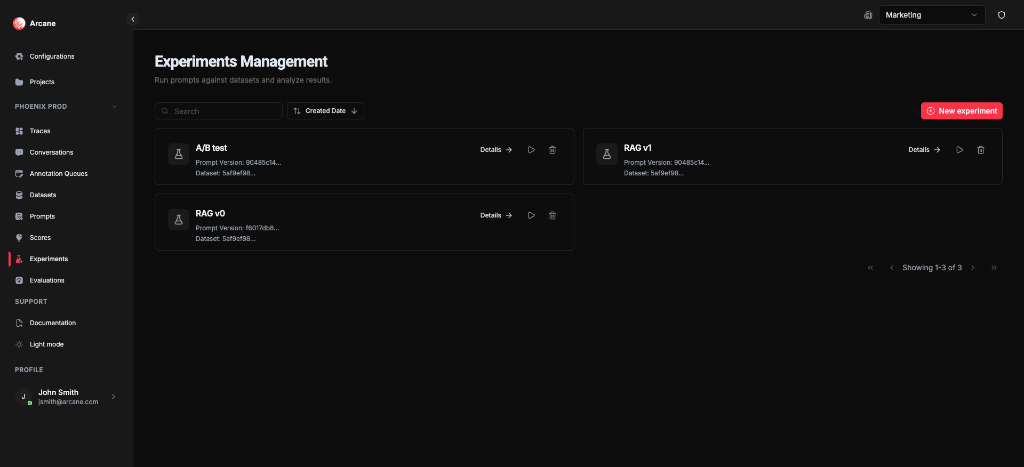
From Experiments in the sidebar, you see the Experiments Management page: all experiments for the project.
Search and sort
| Control | What it does |
|---|---|
| Search | Filter experiments by name, description, prompt version ID, or dataset ID. |
| Sort | Sort by Name, Description, Prompt Version, Dataset, or Created Date (ascending/descending). |
Experiment cards
Each card shows:
- Name and Description — or, if no description, truncated prompt version ID, dataset ID, and results count
- Details — open the experiment detail page
- Re-run — re-execute the experiment against the dataset
- Delete — remove the experiment and all its results
New experiment
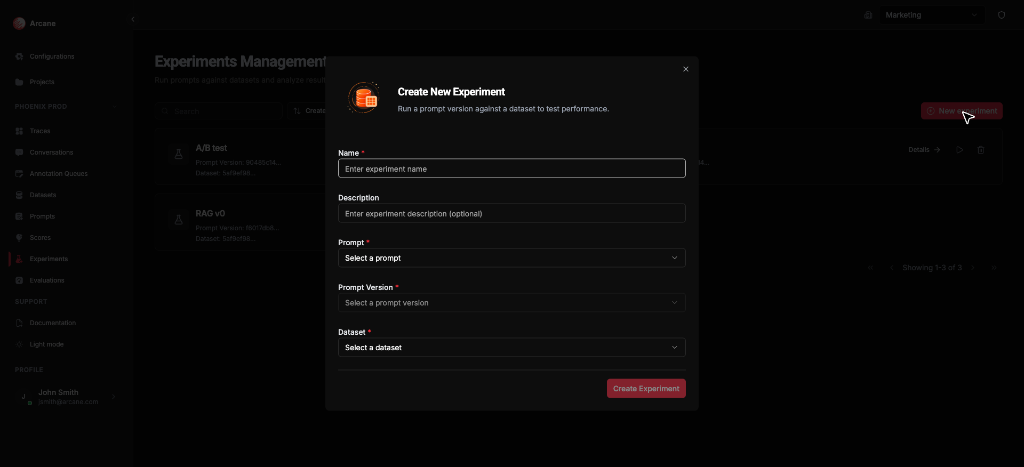
Click New experiment to create an experiment with name, prompt version, dataset, and input mappings.
Create experiment
Basic info
| Field | What it does |
|---|---|
| Name | Required. Label for the experiment. |
| Description | Optional. Helper text for your team. |
Prompt and dataset
| Field | What it does |
|---|---|
| Prompt | Select a prompt, then choose a version (e.g. v0, v1). Required. |
| Prompt Version | Appears after selecting a prompt. Pick the version to run. |
| Dataset | Select the dataset to run against. Required. |
Prompt input mappings
When your prompt uses variables (e.g. Mustache {{query}} or F-String {query}), the form shows Prompt Input Mappings. Map each variable to a dataset column:
| Mapping | What it does |
|---|---|
| Variable → Dataset field | Map each prompt input to a dataset column. Select a column or "Other" for a custom value. |
Variables are detected from the prompt template. See Prompts — Template format for Mustache and F-String syntax. Map them so each row supplies the correct inputs when the experiment runs.
Click Create Experiment to save. The experiment runs automatically against the dataset.
Experiment detail
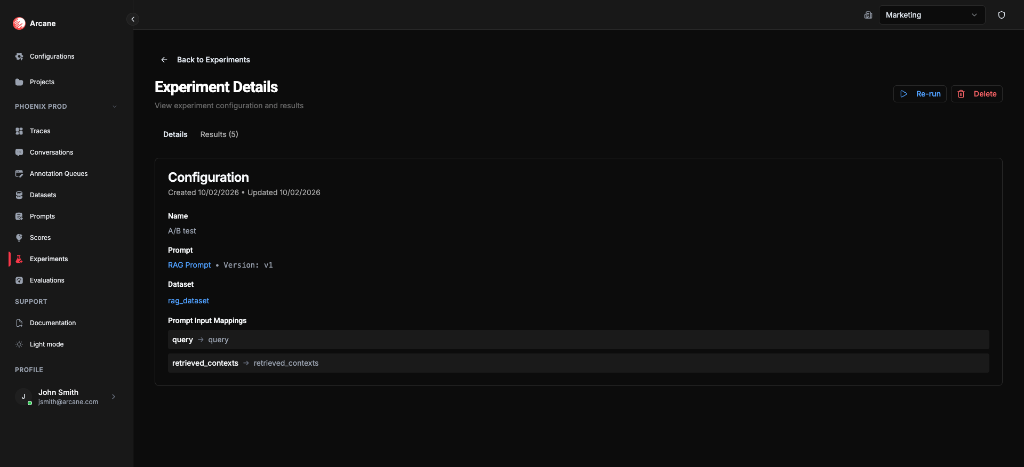
When you open an experiment, you see two tabs: Details and Results.
Header
- Back to Experiments — return to the list
- Re-run — re-execute the experiment
- Delete — remove the experiment and all results
Details tab
Shows the experiment configuration:
- Name and Description
- Prompt — link to the prompt and version (e.g. RAG Prompt • Version: v1)
- Dataset — link to the dataset
- Prompt Input Mappings — variable → dataset column mappings (e.g.
query → query,retrieved_contexts → retrieved_contexts) - Created and Updated timestamps
Results tab
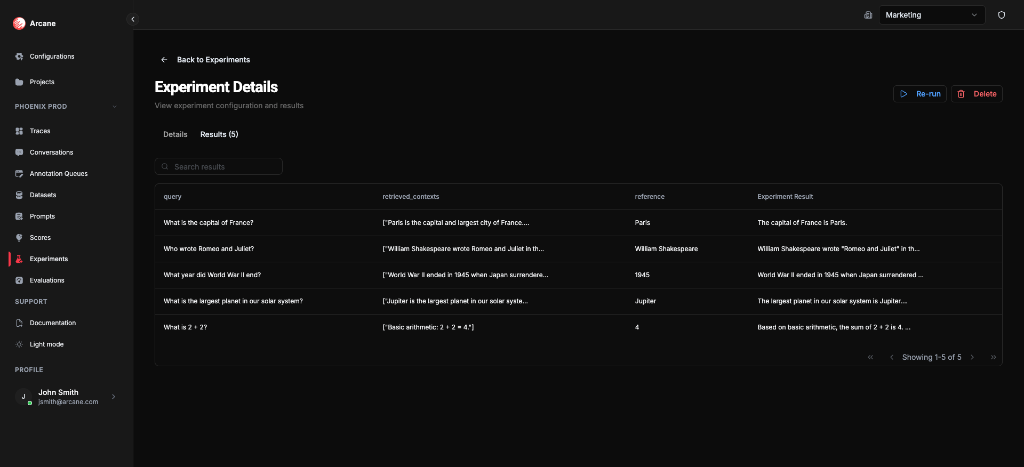
- Search results — filter rows
- Table — dataset columns (query, retrieved_contexts, reference, etc.) plus Experiment Result (the model output per row)
- Copy to clipboard — copy cell values
- Pagination — navigate through result rows
Each row shows the dataset input values and the generated output for that row.
Re-run experiment
Use Re-run to execute the experiment again against the same dataset. Useful when:
- The prompt or dataset has changed
- You want to refresh results after model/config updates
Re-running creates a new experiment (the original is unchanged). The operation may take some time for large datasets.
When to use
- Test a prompt on a curated dataset before deploying.
- Compare prompt versions — create separate experiments for different versions on the same dataset.
- Batch runs — run a prompt over many inputs and inspect outputs per row.
- Feed evaluations — use experiment outputs in Evaluations to score quality with Scores.
Related
- Evaluation & Experimentation — experiments, evaluations, and scores.
- Prompts — create and version prompts; template format and variables.
- Datasets — create datasets; Dataset Mode for building from traces.
- Prompts, Models & Scores — core concepts.
- Datasets — dataset concepts.
- Configurations hub — AI Models for prompt execution.