Datasets
Datasets are curated collections of items used for evaluations and experiments. They can come from traces or your own imported sources. See Datasets for the underlying concepts.
Datasets list
From Datasets in the sidebar, you see all datasets for the project.
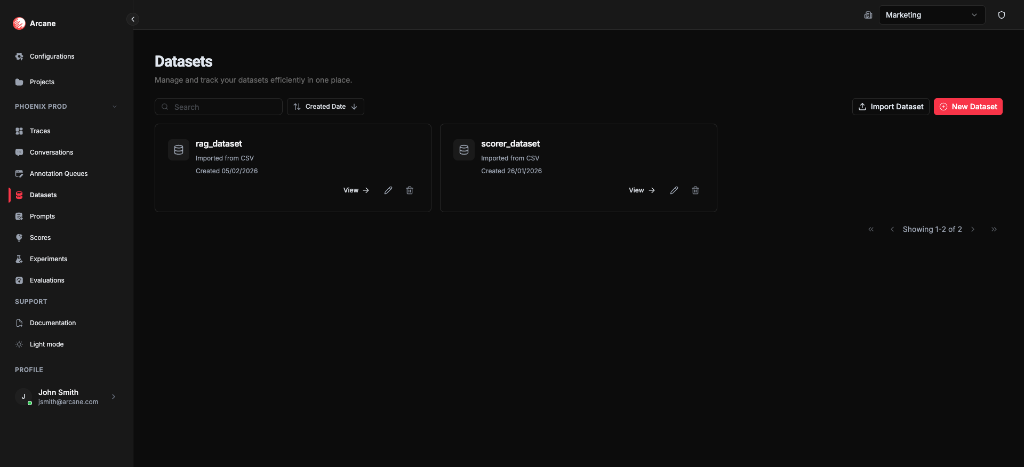
Search and sort
| Control | What it does |
|---|---|
| Search | Filter datasets by name or description. |
| Sort | Sort by Name, Description, or Created Date (ascending/descending). |
Dataset cards
Each dataset shows:
- Name and source (e.g. Imported from CSV)
- Created date
- View — open the dataset detail
- Edit — change name, description, or columns
- Delete — remove the dataset
New Dataset
Click New Dataset to create a dataset with name, description, and columns.
Import Dataset
Click Import Dataset to upload a CSV file and create a dataset from it.
Create dataset
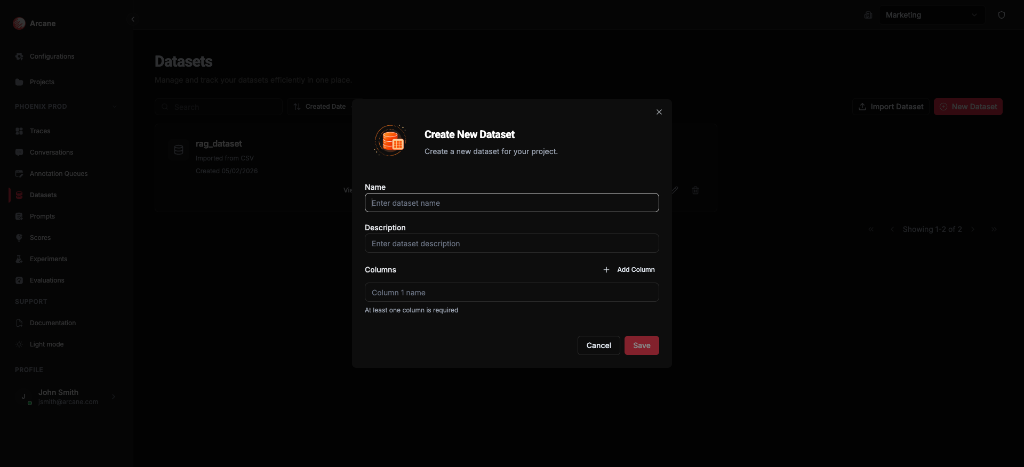
| Field | What it does |
|---|---|
| Name | Label for the dataset. |
| Description | Optional helper text. |
| Columns | Define column names. Click Add Column to add more. At least one column is required. |
Save is enabled once you add at least one column with a name.
Import dataset
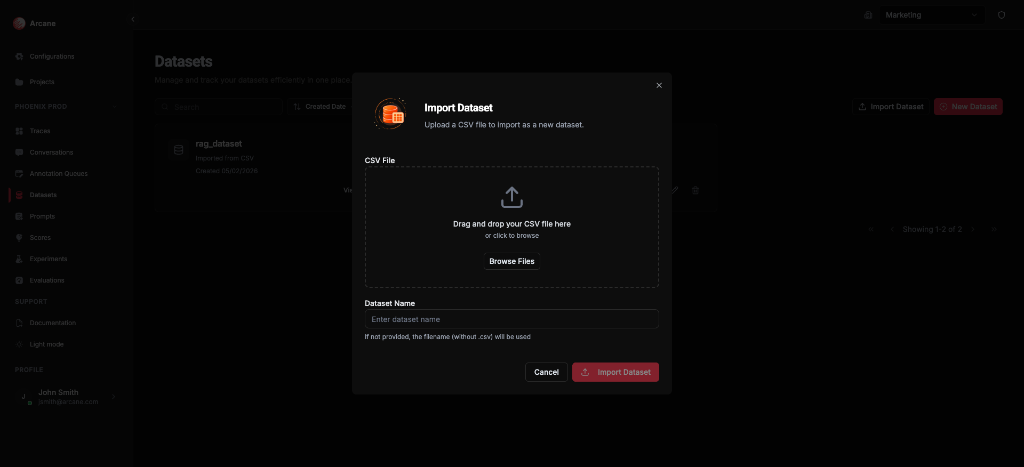
| Field | What it does |
|---|---|
| CSV File | Drag and drop or click to browse. The first row of the CSV defines column names. |
| Dataset Name | Optional. If not provided, the filename (without .csv) is used. |
Click Import Dataset after selecting a file. The dataset is created with columns and rows from the CSV.
Dataset detail
When you open a dataset, you see its header (columns) and rows.
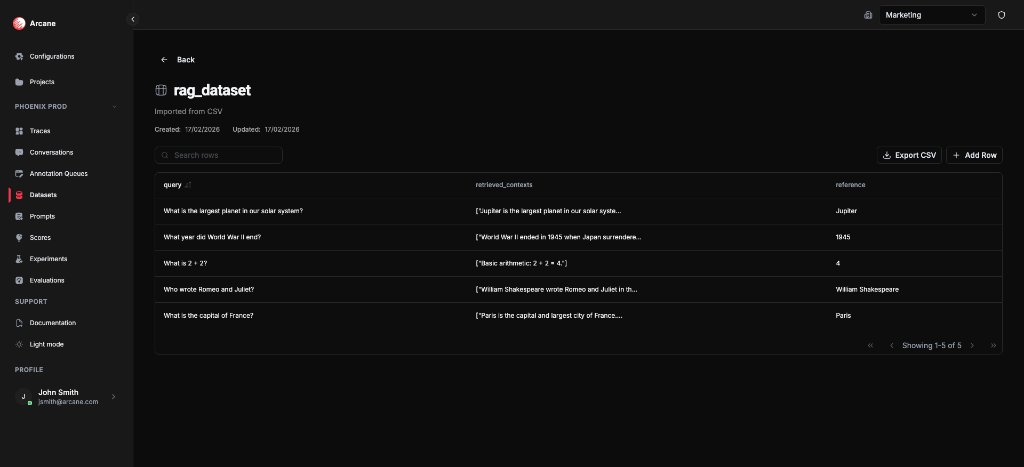
Header
- Back — return to the datasets list.
- Dataset name and source (e.g. Imported from CSV).
- Created and Updated timestamps.
Table controls
| Control | What it does |
|---|---|
| Search rows | Filter rows by content. |
| Export CSV | Download the dataset as a CSV file. |
| Add Row | Add a new row. An inline row appears at the top; fill in values and save. |
Table
- Columns — the dataset's column names. Click column headers to sort (where supported).
- Rows — each row shows values for each column. Use Copy to clipboard on a cell to copy its value.
- Pagination — navigate through pages of rows.
Dataset Mode (adding rows from traces)
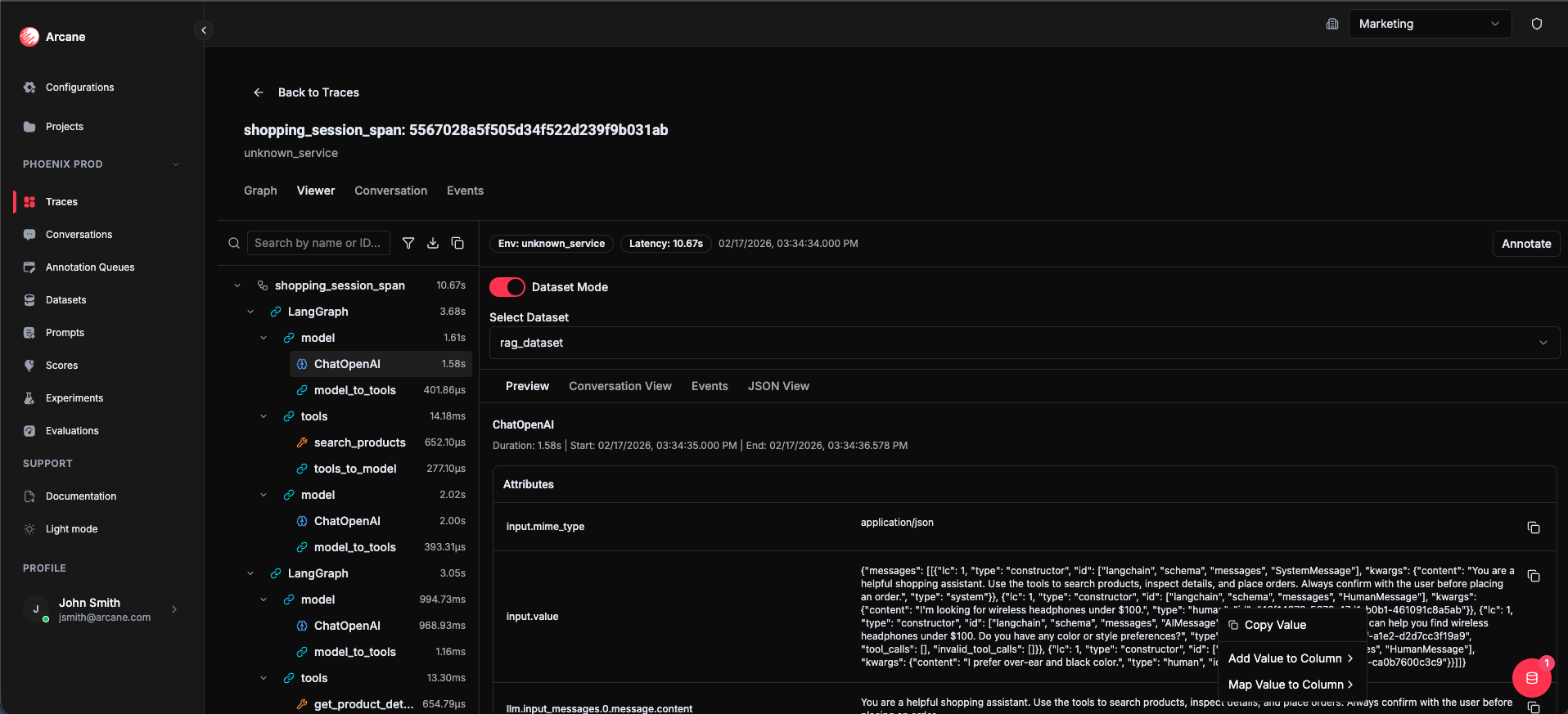
Dataset Mode lets you map span attributes into dataset columns from the Trace detail view. Use it when you want to build or extend a dataset from trace data (e.g. for evaluations and experiments).
What you need
- A dataset created in the project (with at least one column). See Create dataset above.
- A trace open in the trace detail view (Traces → open a trace).
Steps
- Open a trace from Traces.
- In the Viewer tab, turn on Dataset Mode and select a dataset from the dropdown.
- In the Preview sub-tab (detail panel), right-click an attribute key or value to open the context menu.
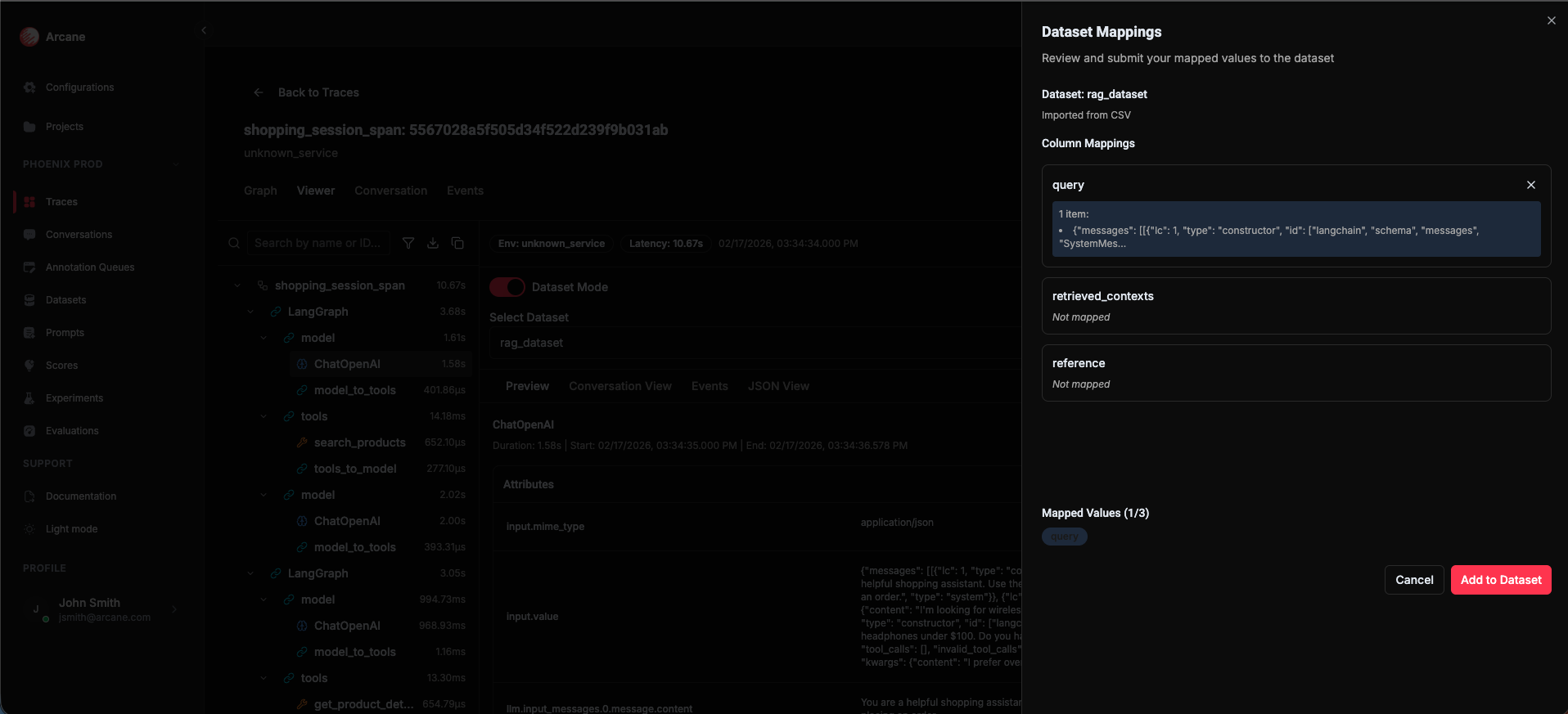
- Use Add Key/Value to Column or Map Key/Value to Column to map that attribute to a dataset column. Repeat for other attributes as needed. For spans that have been identified as model entities, you can also map messages from the whole span (not just individual attributes).
- Optionally open Dataset Mappings to review and manage all mappings for this trace.
- Turn off Dataset Mode by clicking the toggle again when you're done.
Mapped data is written to the dataset according to your mappings. You can then use the dataset in evaluations and experiments.
When to use
- Build a stable set of inputs for repeatable quality checks.
- Reuse the same dataset after prompt/model changes to spot regressions.
- Feed annotation queues when you need labels on a known set.
- Run evaluations and experiments — datasets are the input for both.
Related
- Datasets — concepts and structure.
- Traces — open traces and use Dataset Mode (see Dataset Mode above).
- Annotation Queues — label traces/conversations to build datasets.
- Experiments — run prompts against datasets.
- Evaluations — run scores on datasets.
- Evaluation & Experimentation — overview.