RBAC (Role-Based Access Control)
Arcane uses role-based access control (RBAC) to manage who can access what. Roles define permissions at both the organization and project levels, giving you fine-grained control over access to resources.
What it is
RBAC lets you control access by assigning roles to users. Each role has specific permissions that determine what actions users can perform. Arcane supports:
- System roles — Built-in roles with predefined permissions (Organisation Admin, Organisation Member, Project Admin, Member, Viewer)
- Custom roles — Create your own roles with specific permissions (enterprise feature)
- Hierarchical permissions — Organization-level and project-level roles work together
Organization-level roles
Organization roles control access to organization-wide settings and determine which projects users can access.
Organisation Admin
Full access to organization settings and all projects.
Permissions:
- Manage organization settings (datasources, entities, models, users, roles)
- Access all projects in the organization
- Create and delete projects
- Manage organization-level users and roles
- View audit logs
- Configure retention settings
When to use: Grant to trusted team members who need to manage the entire organization.
Organisation Member
Can access projects they're added to, but cannot manage organization settings.
Permissions:
- Access projects they're explicitly added to
- Cannot manage organization settings
- Cannot create or delete projects
- Cannot manage organization-level users or roles
When to use: Default role for most team members. They can work within projects but don't have organization-wide administrative access.
Project-level roles
Project roles control what users can do within a specific project. These roles apply only to the project they're assigned to.
Project Admin
Full access to project settings and all project resources.
Permissions:
- Manage project settings (users, roles, API keys, retention, attribute visibility)
- Create, edit, and delete all project resources (evaluations, experiments, prompts, datasets, etc.)
- View and manage audit logs
- Configure data retention
- Manage API keys
When to use: Grant to team leads or senior members who need to manage a project's settings and resources.
Member
Can create and edit project resources, but cannot manage project settings.
Permissions:
- Create, edit, and delete project resources (evaluations, experiments, prompts, datasets, etc.)
- View traces, conversations, and other project data
- Cannot manage project settings (users, roles, API keys)
- Cannot view audit logs
- Cannot configure retention
When to use: Default role for team members who need to work with project resources but don't need administrative access.
Viewer
Read-only access to project resources.
Permissions:
- View traces, conversations, evaluations, experiments, and other project data
- Cannot create, edit, or delete any resources
- Cannot manage project settings
- Cannot view audit logs
When to use: Grant to stakeholders, contractors, or team members who only need to view project data.
Custom roles (enterprise)
Create custom roles with specific permissions to match your team's needs. Custom roles can be defined at both the organization and project levels.
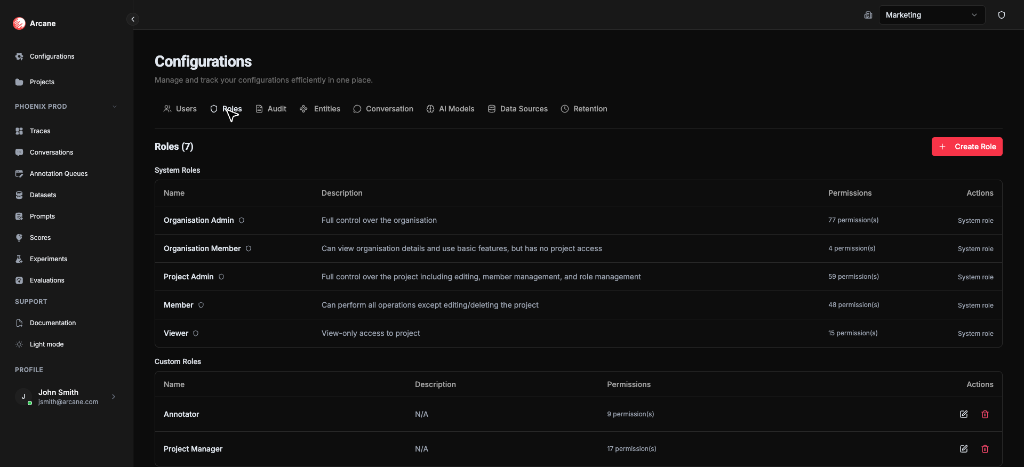
Organization-level custom roles
Define custom roles that apply across the organization. These roles can have permissions for organization settings and project access.
Where to create: Organisation Configuration → Roles tab
Project-level custom roles
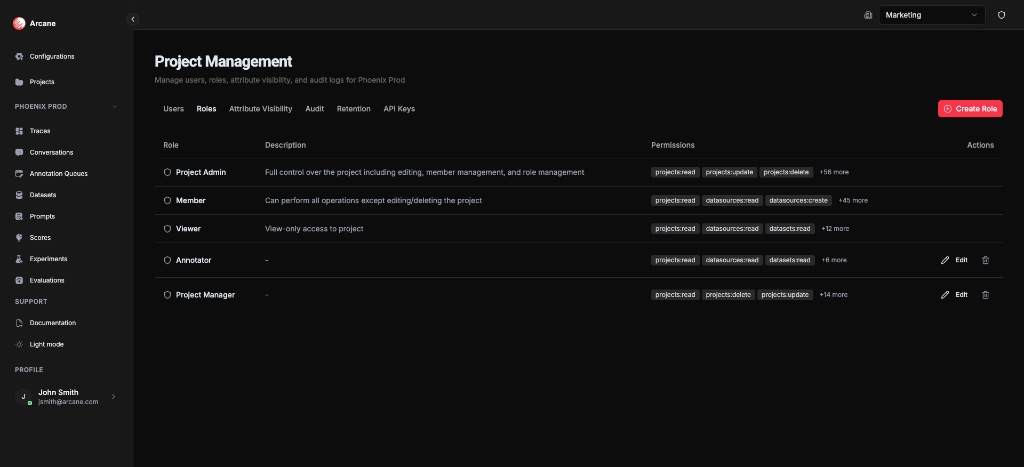
Define custom roles that apply only to a specific project. These roles can have fine-grained permissions for project resources.
Where to create: Manage Project → Roles tab
Creating a custom role
Click Create Role to define a new role:
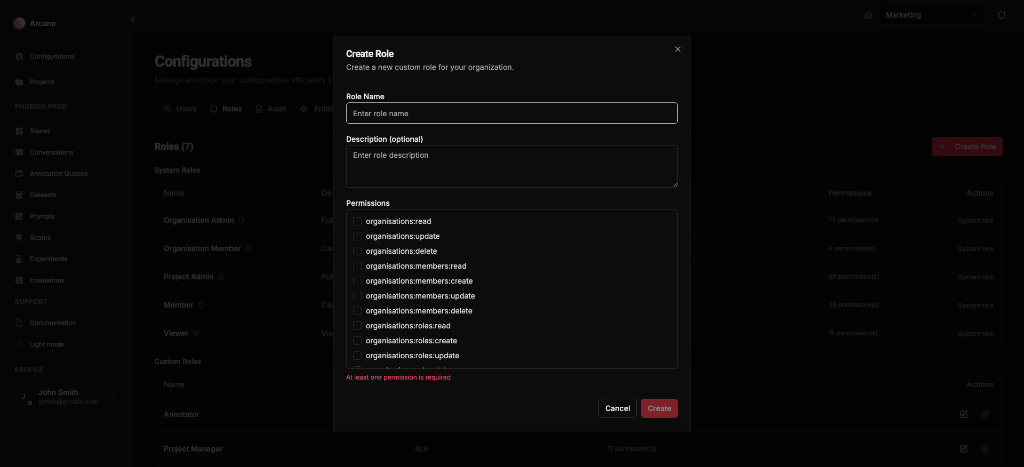
| Field | Required | Description |
|---|---|---|
| Role Name | Yes | Name for the role (e.g., "Developer", "Data Scientist") |
| Description (optional) | No | Helpful description of what this role can do |
| Permissions | Yes | Select the permissions this role grants. At least one permission is required |
Available permissions include:
projects:create,projects:read,projects:update,projects:deletedatasources:read,datasources:create,datasources:update,datasources:deleteentities:read,entities:create,entities:update,entities:deletedatasets:read,datasets:create,datasets:update,datasets:deleteprompts:read,prompts:create,prompts:update,prompts:deletescores:read,scores:create,scores:update,scores:deleteevaluations:read,evaluations:create,evaluations:update,evaluations:deleteexperiments:read,experiments:create,experiments:update,experiments:deletetraces:read,conversations:readusers:read,users:create,users:update,users:deleteroles:read,roles:create,roles:update,roles:deleteaudit:read- And more...
Tip: Custom roles are useful when you need fine-grained control. For example, you might create a "Data Scientist" role that can create experiments and evaluations but cannot manage users or API keys.
How roles work together
Roles work hierarchically:
- Organization role determines if a user can access the organization and its settings
- Project role determines what a user can do within a specific project
Example:
- A user with Organisation Member role can access projects they're added to
- Within a project, they might have Member role (can create resources) or Viewer role (read-only)
- An Organisation Admin has access to all projects and can manage organization settings
Important: A user must be an Organisation Member (or Organisation Admin) before they can be added to a project. You cannot add someone directly to a project if they're not an organization member.
Managing roles
Organization-level roles
Manage organization roles in Organisation Configuration → Roles tab:
- View roles — See all organization roles and their permissions
- Create custom role — Define a new organization-level role (enterprise)
- Edit custom role — Update permissions for a custom role
- Delete custom role — Remove a custom role (system roles cannot be deleted)
Project-level roles
Manage project roles in Manage Project → Roles tab:
- View roles — See all project roles and their permissions
- Create custom role — Define a new project-level role (enterprise)
- Edit custom role — Update permissions for a custom role
- Delete custom role — Remove a custom role (system roles cannot be deleted)
Assigning roles to users
- Organization roles — Assign in Organisation Configuration → Users tab
- Project roles — Assign in Manage Project → Users tab when inviting users or changing their role
Best practices
- Principle of least privilege — Grant users the minimum permissions they need to do their work
- Use custom roles — Create specific roles for different job functions (Developer, Data Scientist, Stakeholder)
- Regular audits — Review who has access and what roles they have
- Document roles — Use role descriptions to explain what each role is for
- Start restrictive — It's easier to grant more access later than to revoke it
Prerequisites
- Organization access — You must be a member of the organization
- Appropriate permissions — You need Organisation Admin or Project Admin permissions to manage roles
- Enterprise features — Custom roles require enterprise features
Related
- Managing Users — Learn about managing organization users
- Managing Users — Learn about managing project users
- Managing Projects — Learn about project management
- Organisation Configuration — Overview of organization configuration
- SSO Setup — Learn about single sign-on