Prompts
Prompts are versioned templates for model calls. You can create, edit, version, promote, and compare them. Prompts are tied to your project and used in experiments. See Prompts, Models & Scores for the underlying concepts.
Prerequisites
- Model configuration in the Configurations hub → AI Models tab. Prompts require a model config (provider, model name, API key) to run. See Prompts, Models & Scores.
Prompts list
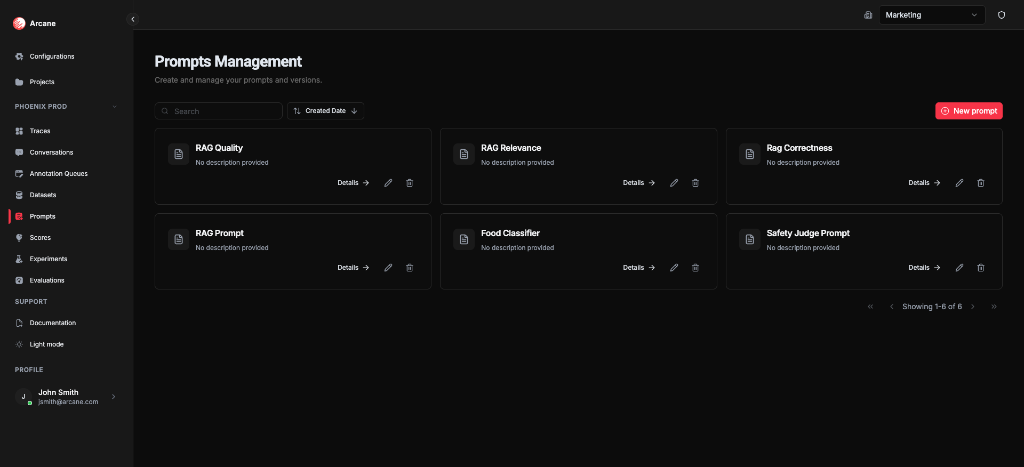
From Prompts in the sidebar, you see all prompts for the project.
Search and sort
| Control | What it does |
|---|---|
| Search | Filter prompts by name or description. |
| Sort | Sort by Name, Description, Created Date, or Updated Date (ascending/descending). |
Prompt cards
Each prompt shows:
- Name and Description
- Details — open the prompt detail
- Edit — edit the latest version (creates a new version)
- Delete — remove the prompt
New prompt
Click New prompt to create a prompt with an initial version.
Create prompt
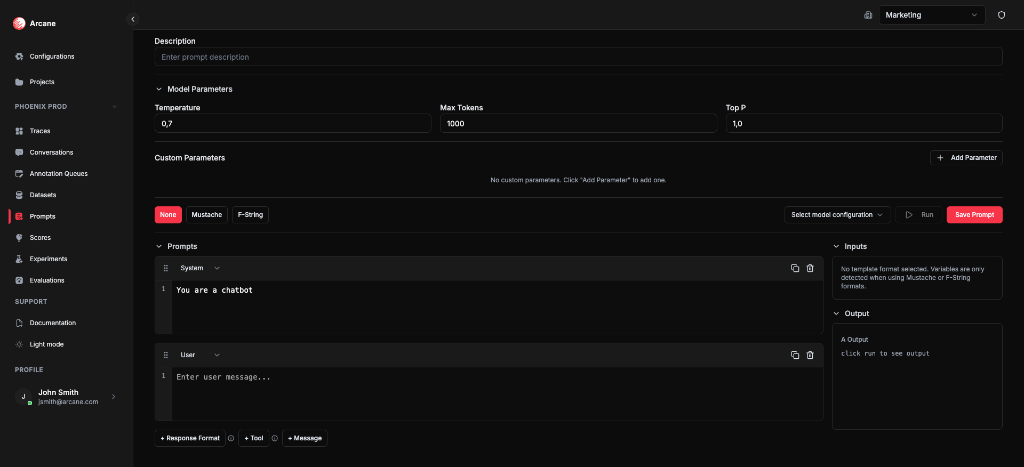
Basic info
| Field | What it does |
|---|---|
| Name | Required. Label for the prompt. |
| Description | Optional. Helper text for your team. |
Model parameters
| Field | What it does |
|---|---|
| Temperature | Model sampling temperature (default 0.7). |
| Max Tokens | Maximum tokens in the response (default 1000). |
| Top P | Nucleus sampling (default 1.0). |
| Custom Parameters | Add provider-specific parameters (e.g. frequency_penalty). |
Template format
Choose how variables are interpolated:
| Format | Syntax | Use case |
|---|---|---|
| None | No variables | Static prompts. |
| Mustache | {{variable}} | Dataset columns or inputs (e.g. {{query}}, {{reference}}). |
| F-String | {variable} | Python-style placeholders. |
With Mustache or F-String, the Inputs section lists detected variables. Use these in experiments and evaluations to pass dataset columns into the prompt.
Prompts (messages)
Build the chat template:
- System — system message (e.g. "You are a helpful assistant.").
- User — user message. Add variables here when using Mustache or F-String.
- + Message — add more messages (assistant, user, etc.).
- + Response Format — constrain output format (e.g. JSON schema).
- + Tool — add tool definitions for function calling.
Model configuration
Select a model configuration from the Configurations hub → AI Models tab. Required to Run the prompt (test with sample inputs).
Run and save
- Run — execute the prompt with sample inputs (requires model config). Output appears in the Output section.
- Save Prompt — create the prompt and its first version.
Prompt detail
When you open a prompt, you see two tabs: Versions and Latest Version.
Versions tab
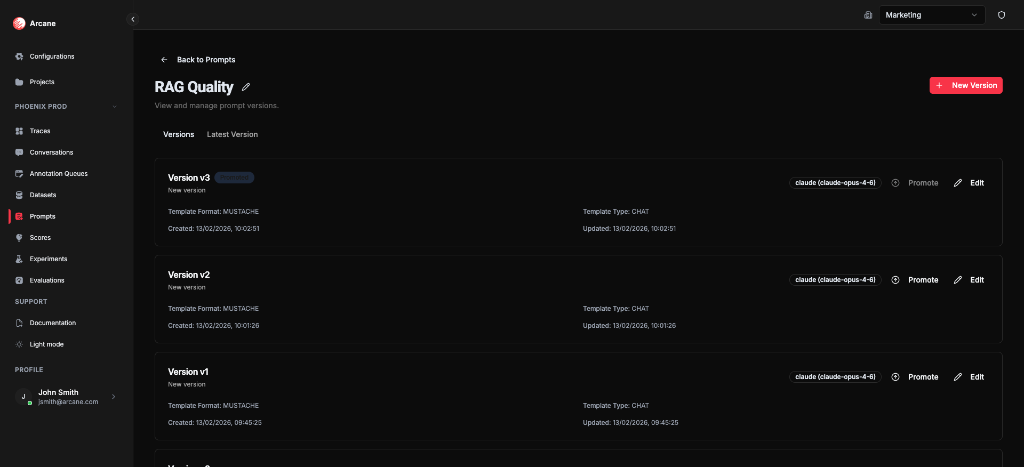
- Version history — all versions (v0, v1, v2, …) with Template Format, Template Type, Created/Updated dates.
- Promoted — the version marked as promoted (see What “promoted” means below).
- Promote — make this version the promoted one.
- Edit — create a new version from this one.
- New Version — create a new version from the latest.
Latest Version tab
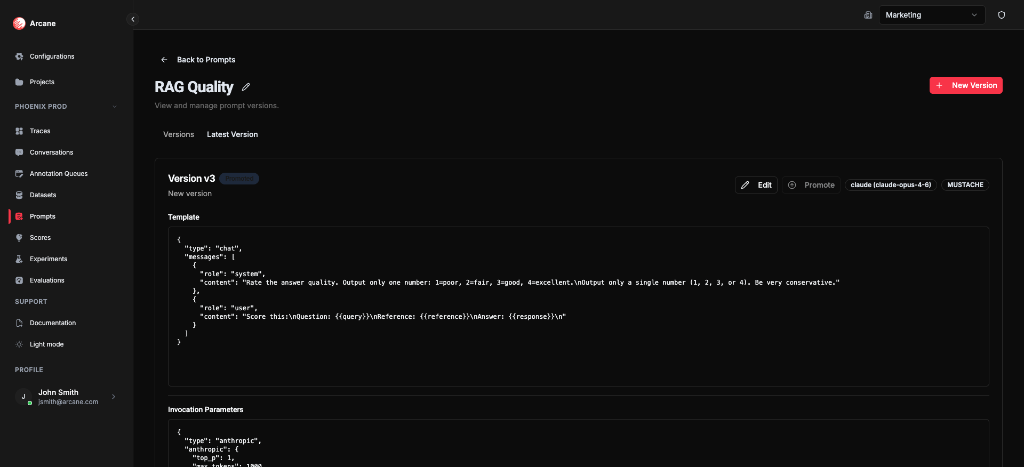
The Latest Version tab always shows the most recently created version of the prompt (the one with the newest Created/Updated date). That version may or may not be the promoted one.
- Template — the full prompt template (JSON with system/user messages) for that latest version.
- Invocation Parameters — temperature, max_tokens, top_p, etc. for that version.
- Edit — create a new version with changes (the new version becomes the new “latest”).
- Promote — make this version the promoted one (if not already).
So: “latest” = chronological (newest by time). “Promoted” = the version experiments use by default when you pick this prompt. They can differ—for example, you might have v3 as latest but keep v2 promoted until you’re happy with v3.
Edit prompt info
Click the pencil icon next to the prompt name to edit name and description without creating a new version.
Versioning, latest version, and promote
How versioning works
- Each Edit or New Version creates a new version (v0, v1, v2, …). Versions are ordered by creation time.
- The latest version is simply the most recently created version. The Latest Version tab always displays that version’s template and parameters.
What “promoted” means
- Promoted is the version that experiments use by default when you select this prompt. When you create an experiment and choose this prompt, the version picker will typically default to the promoted version (you can still choose another version if you want).
- Only one version per prompt is promoted at a time. Clicking Promote on a different version makes that version promoted and the previous one no longer promoted.
- Why it matters: You can edit and save new versions (v1, v2, v3…) without changing what’s running in experiments. When you’re ready, Promote the version you want experiments to use. To “roll back,” promote an older version.
Summary: Latest = newest by time. Promoted = the version used by default in experiments. Use promote to control which version is active without deleting history.
When to use
- Version prompts so you can track changes and roll back.
- Compare prompt variants in experiments on the same dataset.
- Use Mustache/F-String when prompts need dataset inputs (e.g.
{{query}},{{reference}}). - Keep system and user prompts organised per project.
Related
- Prompts, Models & Scores — prompts, models, and scores.
- Configurations hub — AI Models and other org settings.
- Experiments — run prompt versions against datasets.
- Scores — define scoring criteria for evaluations and experiments.
- Evaluations — run scores on experiment results.
- Evaluation & Experimentation — overview.