Annotation Queues
Annotation queues organise human review of traces or conversations. Reviewers answer questions for each item; answers become labels you can use in evaluations and experiments. See Annotations & Queues for the underlying concepts.
Queues list
From Annotation Queues in the sidebar, you see all queues for the project.
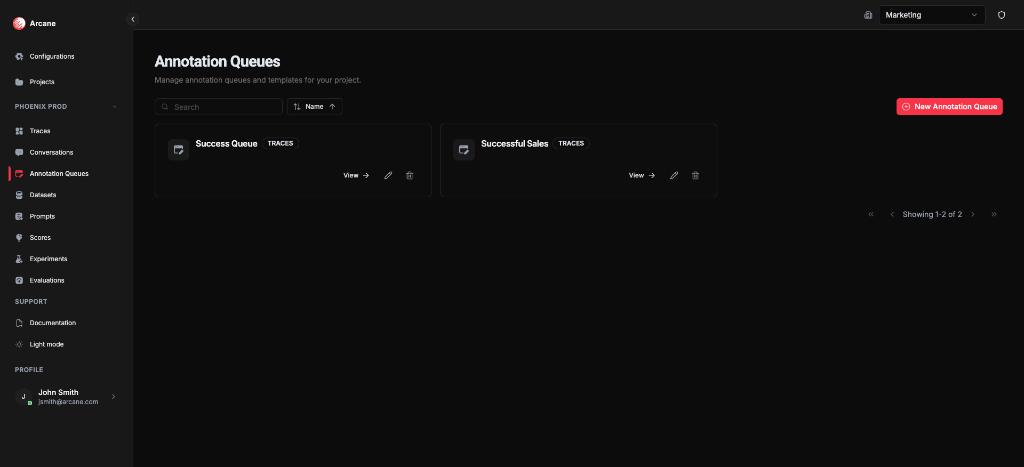
Search and sort
| Control | What it does |
|---|---|
| Search | Filter queues by name or description. |
| Sort | Sort by Name, Description, or Type (ascending/descending). |
Queue cards
Each queue shows:
- Name and Type (Traces or Conversations)
- View — open the queue detail
- Edit — change name, description, type, and questions
- Delete — remove the queue
New Annotation Queue
Click New Annotation Queue to create a queue. You define:
- Name and Description
- Queue Type — Traces or Conversations (choose what you want to annotate)
- Template Questions — the questions reviewers will answer for each item
Create queue
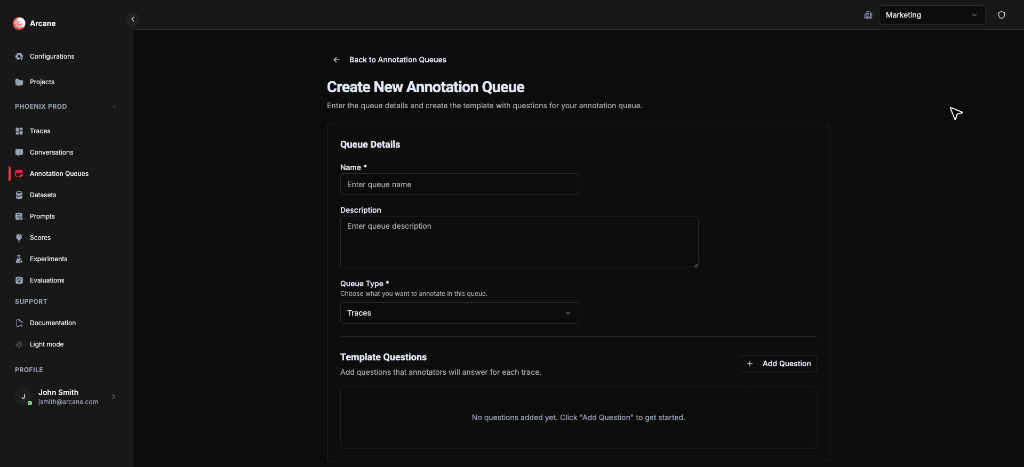
Queue details
| Field | What it does |
|---|---|
| Name | Required. Label for the queue. |
| Description | Optional. Helper text for your team. |
| Queue Type | Traces or Conversations. Determines what items can be enqueued. |
Template questions
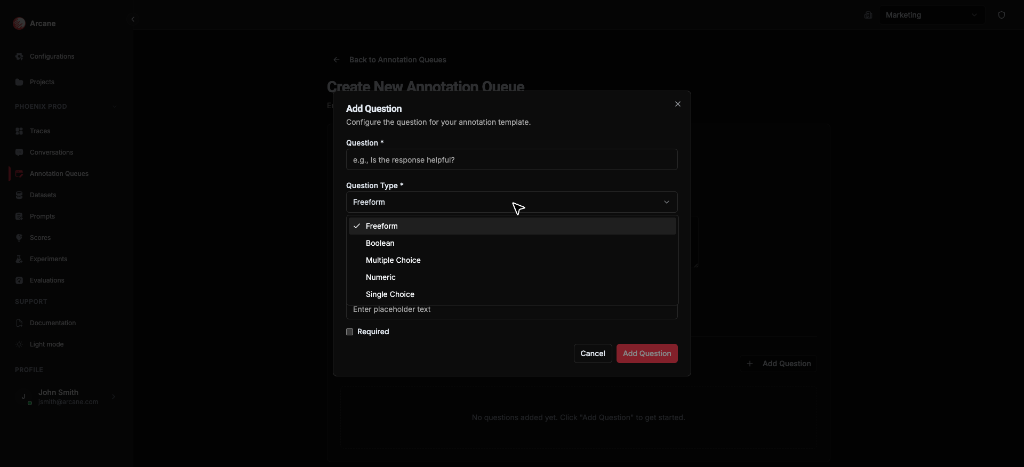
Add questions that annotators will answer for each trace or conversation. Click Add Question to open the question dialog.
| Field | What it does |
|---|---|
| Question | The prompt reviewers see (e.g. "Did the assistant correctly understand the user's intent?"). |
| Question Type | Freeform, Boolean, Multiple Choice, Single Choice, or Numeric. |
| Helper Text | Optional guidance shown below the question. |
| Placeholder | Optional placeholder for text inputs. |
| Required | Whether the question must be answered before submitting. |
For Multiple Choice and Single Choice, you define the options when adding the question. For Numeric, you can set min/max and default.
Create Queue is enabled once you add at least one question.
Queue detail
When you open a queue, you see two tabs: Annotated (items with answers) and To be Annotated (items pending review).
Annotated tab
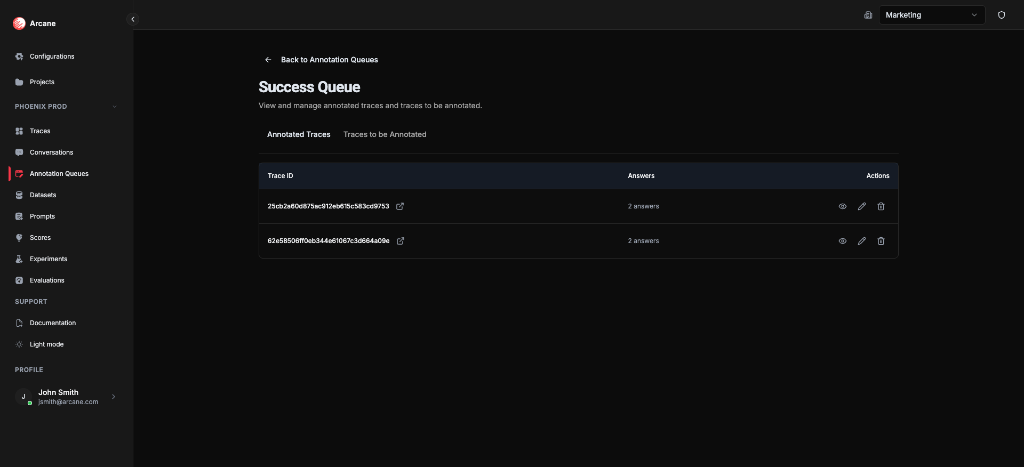
- Trace ID (or Conversation ID) — click View trace to open the trace detail
- Answers — number of questions answered
- Actions — View (see answers), Edit (change answers), Delete (remove from queue)
To be Annotated tab
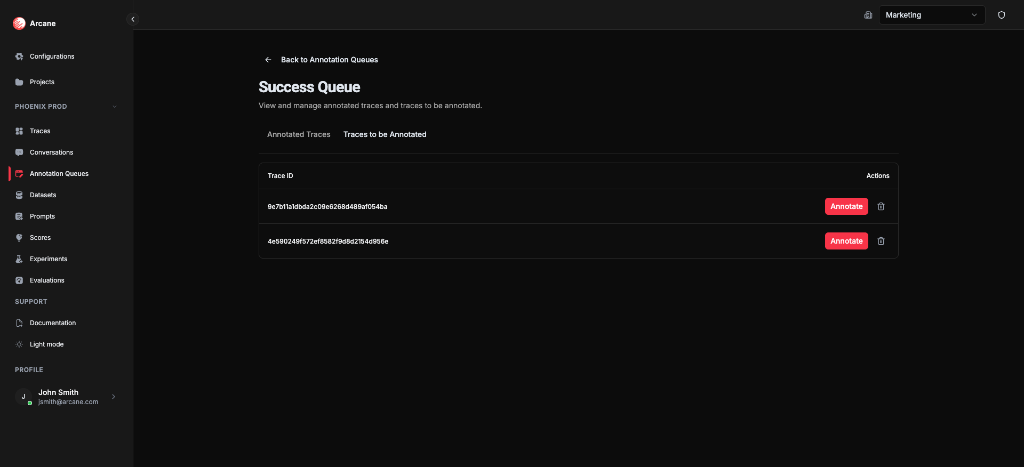
- Trace ID (or Conversation ID)
- Actions — Annotate (answer questions), Delete (remove from queue)
Annotate dialog
Click Annotate on a pending item to open the annotation dialog.
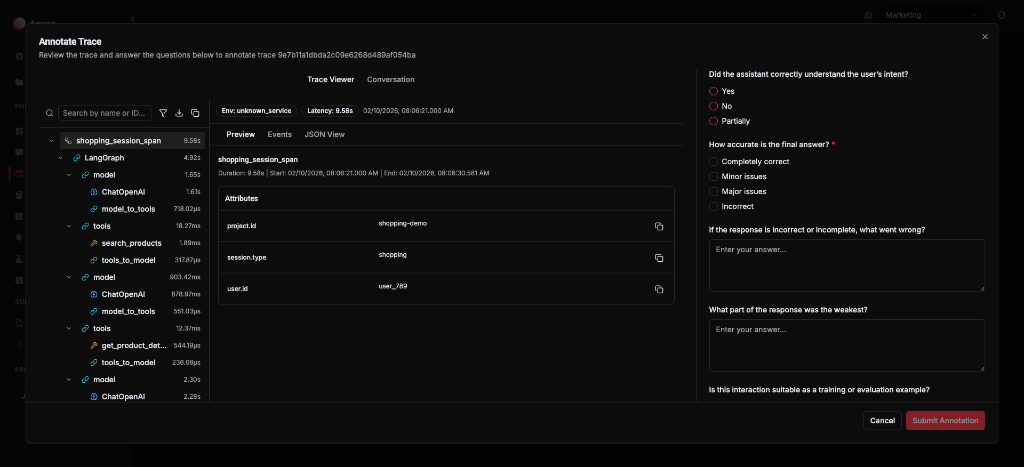
The dialog has two parts:
- Trace/Conversation viewer — Review the item. Tabs: Trace Viewer (span tree, detail panel) and Conversation (chat replay).
- Questions form — Answer each question. Types: Freeform text, Boolean (Yes/No), Single Choice (radio), Multiple Choice (checkboxes), Numeric.
Fill in required questions and click Submit Annotation. The item moves to the Annotated tab and your answers are saved.
Ways to annotate data
You can add items to a queue and annotate them in several places:
| Where | What you do |
|---|---|
| Traces list | Select one or more traces with the checkboxes, click Add to annotation queue, choose a Traces-type queue. |
| Trace detail | In the header, click + Add to annotation queue to enqueue this trace, or Annotate to open the annotation sidebar and answer questions without leaving the trace. |
| Conversations list | Select one or more conversations with the checkboxes, click Add to Annotation Queue, choose a Conversations-type queue. |
| Conversation detail | In the header, click Add to Annotation Queue to enqueue, or Annotate Conversation to open the annotation sidebar. |
| Queue detail | Open a queue, go to To be Annotated, and click Annotate on an item to open the annotation dialog (see Annotate dialog above). |
Traces-type queues accept only traces; Conversations-type queues accept only conversations. For more on working with traces and conversations, see Traces and Conversations.
Annotate from trace or conversation detail (sidebar)
When you click Annotate (trace) or Annotate Conversation (conversation) in the detail view header, a sidebar opens so you can answer questions without leaving the trace or conversation:
- Select an annotation queue (Traces type for a trace, Conversations type for a conversation).
- Answer the queue’s questions (e.g. “Did the assistant correctly understand the user’s intent?”, “How accurate is the final answer?”).
- Submit. The item is added to the queue (if not already) and your answers are saved as annotations.
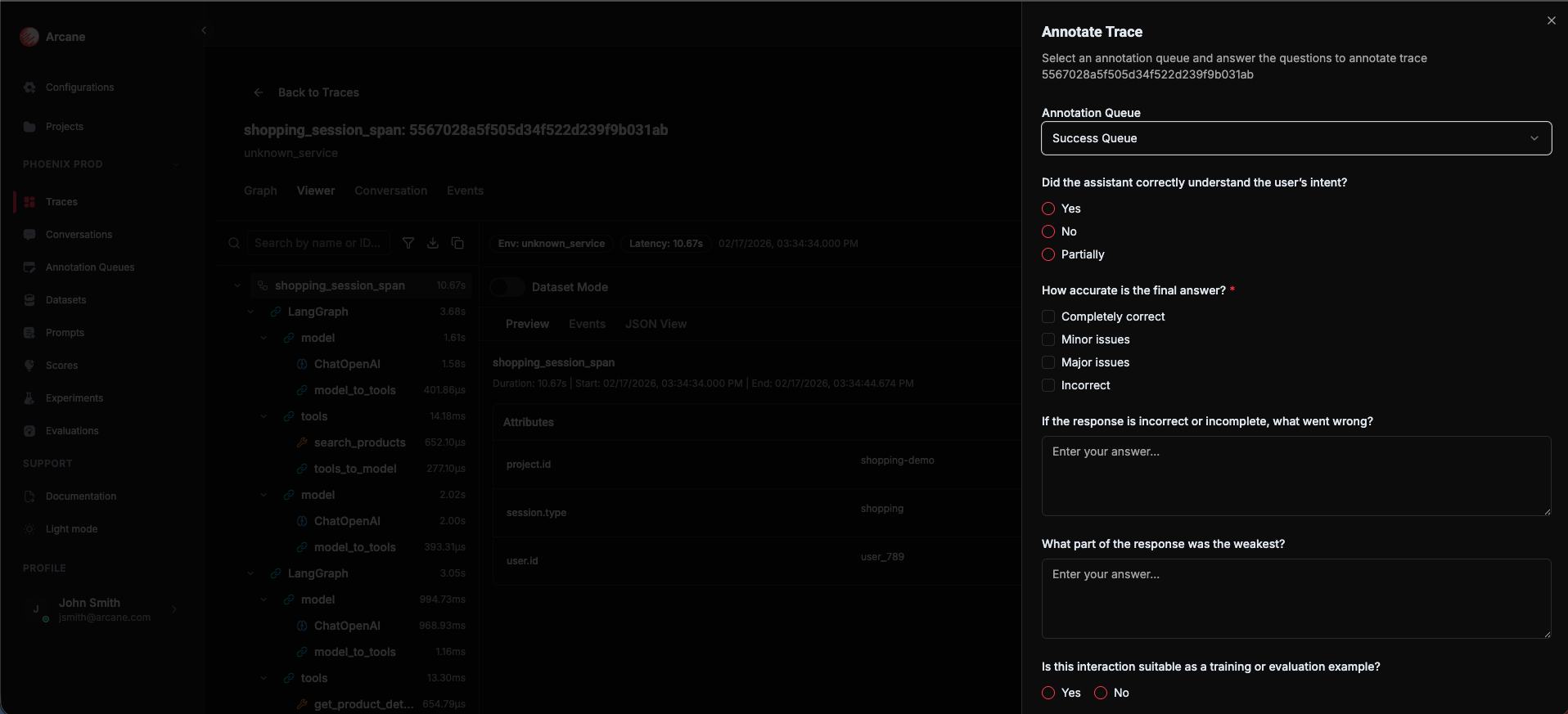
You can also annotate from the Queue detail page using the Annotate dialog (opens a full dialog with viewer + questions).
When to use
- Get human labels for quality checks and evaluations.
- Compare before/after prompt or model changes using the same queue.
- Build labeled datasets for evaluations and experiments.
Related
- Annotations & Queues — queues, questions, and annotations.
- Traces — search traces and add to queues.
- Conversations — search conversations and add to queues.
- Datasets — use annotated items in evaluations.