Evaluations
Evaluations run Scores on datasets or experiment results to measure quality. You create an evaluation, run it, and view statistics and per-row results. See Evaluation & Experimentation and Prompts, Models & Scores for the underlying concepts.
Evaluation scopes
Evaluations support two scopes:
| Scope | What it evaluates | Use case |
|---|---|---|
| Dataset | Dataset rows directly | Score a dataset without running experiments (manual or LLM-as-judge scores). |
| Experiment | Experiment results | Score outputs from one or more Experiments. |
There are three evaluation cases, each with its own statistics and (for multiple experiments) comparison behaviour. See the pages below for how each case works and how statistics and comparisons are calculated.
| Case | Page | What you get |
|---|---|---|
| Dataset evaluation | Dataset evaluation | Score dataset rows; statistics by score type. |
| Single experiment | Single experiment evaluation | Score one experiment's outputs; statistics by score type. |
| Multiple experiments | Multiple experiment evaluation | Score 2+ experiments; per-experiment statistics and a Comparison tab with paired analysis and effect sizes. |
Prerequisites
- Scores — Define the metrics to run. See Scores.
- Dataset (Dataset scope) — A Dataset with rows to score.
- Experiments (Experiment scope) — One or more Experiments with results to score.
Evaluations list
From Evaluations in the sidebar, you see the Evaluations Management page: all evaluations for the project.
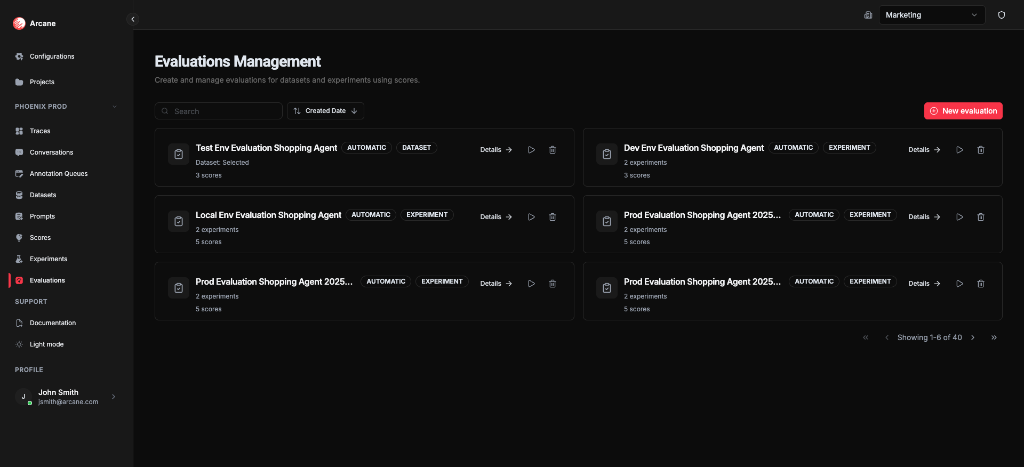
Search and sort
| Control | What it does |
|---|---|
| Search | Filter evaluations by name or description. |
| Sort | Sort by Name, Description, or Created Date (ascending/descending). |
Evaluation cards
Each card shows:
- Name and Description
- Type badges — AUTOMATIC, DATASET or EXPERIMENT
- Scope summary — "Dataset: [name]" or "N experiments" with score count
- Details — open the evaluation detail page
- Re-run — re-execute the evaluation
- Delete — remove the evaluation and all results
New evaluation
Click New evaluation to create an evaluation with name, scope, dataset or experiments, and scores.
Create evaluation
Dataset scope
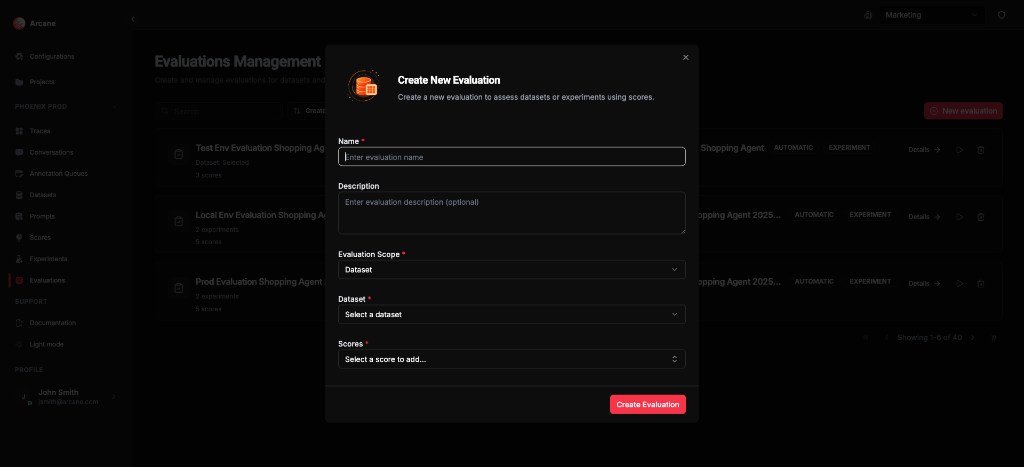
| Field | What it does |
|---|---|
| Name | Required. Label for the evaluation. |
| Description | Optional. Helper text for your team. |
| Evaluation Scope | Select Dataset. |
| Dataset | Select the dataset to score. Required. |
| Scores | Add one or more scores. Required. |
Scores run on each dataset row. For LLM-as-judge scores, the model evaluates inputs/outputs; for manual scores, enter results in the Detailed tab. See Dataset evaluation for statistics and behaviour.
Experiment scope
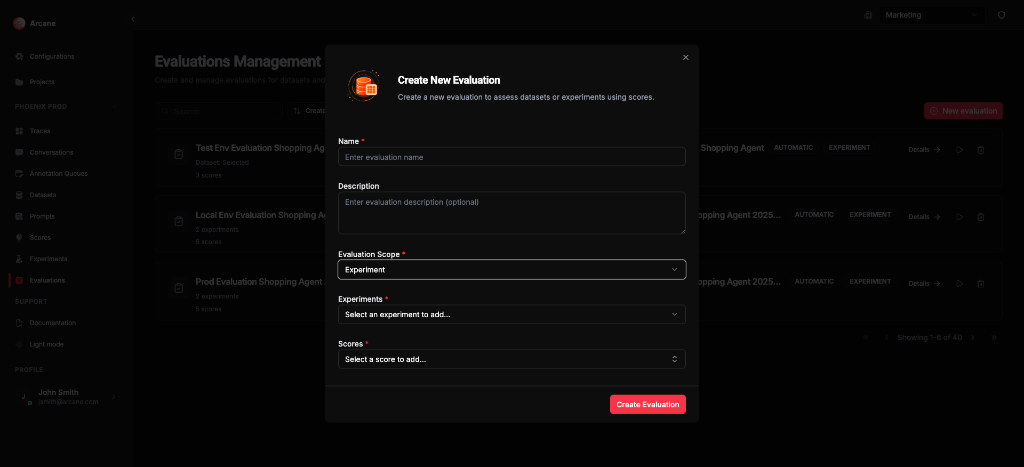
| Field | What it does |
|---|---|
| Name | Required. Label for the evaluation. |
| Description | Optional. Helper text for your team. |
| Evaluation Scope | Select Experiment. |
| Experiments | Add one or more experiments. Required. |
| Scores | Add one or more scores. Required. |
Scores run on experiment results (model outputs per dataset row). Use one experiment for single-variant analysis, or multiple experiments to compare variants. See Single experiment evaluation and Multiple experiment evaluation for statistics and comparison.
Click Create Evaluation to save. The evaluation runs automatically.
Evaluation detail
When you open an evaluation, you see General and Detailed tabs. Evaluations with 2+ experiments also show a Comparison tab.
Header
- Back to Evaluations — return to the list
- Re-run — re-execute the evaluation
- Delete — remove the evaluation and all results
General tab
Shows evaluation configuration and statistics (summary per score). How statistics are calculated depends on the evaluation case and score type — see:
- Dataset evaluation — Statistics
- Single experiment evaluation — Statistics
- Multiple experiment evaluation — Statistics and comparison
Detailed tab
Table of dataset columns plus score columns (one per score). Each row shows inputs and the score value for each metric. Use search, copy, and pagination as needed.
Manual evaluation
For evaluations that use manual scores (e.g. dataset scope with human-provided labels), you enter or edit score values directly in the Detailed tab. Click a score cell to add or change the value for that row; statistics on the General tab update as you save. The short video below shows how to manually add a score in a dataset evaluation.
Comparison tab (multiple experiments only)
When an evaluation has 2 or more experiments, a Comparison tab appears. You pick two experiments (A and B) and a score; the UI shows paired comparison statistics and charts (mean delta, effect size, win/tie/loss, etc.). How comparison is calculated is described in Multiple experiment evaluation — Comparison.
Re-run evaluation
Use Re-run to execute the evaluation again. Useful when:
- The dataset or experiment results have changed
- Scores or score configuration have changed
Re-running replaces existing results. The operation may take some time for large datasets or many scores.
When to use
- Dataset scope — Score a curated dataset without running experiments (e.g. manual labels, LLM-as-judge on reference data). See Dataset evaluation.
- Single experiment — Check quality of one prompt variant's outputs. See Single experiment evaluation.
- Multiple experiments — A/B test prompt or model changes; use the Comparison tab to see which variant wins. See Multiple experiment evaluation.
Related
- Evaluation & Experimentation — overview.
- Scores — define scoring criteria.
- Experiments — run prompts against datasets.
- Datasets — create datasets for evaluations.
- Prompts, Models & Scores — core concepts.