Attribute Visibility
Attribute visibility lets you control which span attribute values are redacted from which roles when viewing traces. When an attribute is hidden from a role, its value appears as [REDACTED] instead of the actual value. This helps protect sensitive information like API keys, tokens, or personal data.
What it is
Attribute visibility rules hide specific span attributes from users based on their role. When a user views traces, attributes that are hidden from their role won't appear in span cards or trace details.
Where to configure:
- Project-level — Manage Project → Attribute Visibility tab
Use cases:
- Redact API keys from Viewer roles (shows
[REDACTED]instead) - Protect sensitive tokens from non-admin users
- Redact personal data (PII) from certain roles
- Control access to internal system attributes
What you see
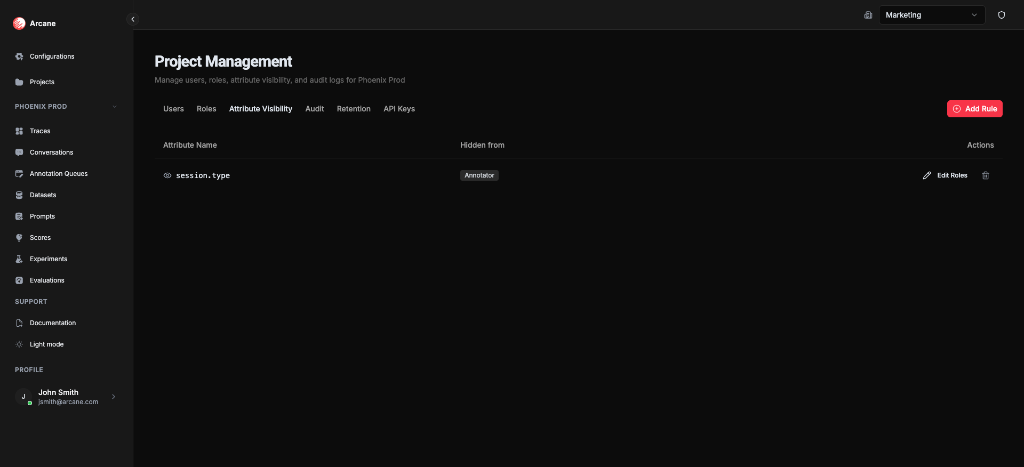
The Attribute Visibility tab shows a table of visibility rules:
| Column | Description |
|---|---|
| Attribute Name | The span attribute to redact (e.g., api.key, token) |
| Hidden from | Which roles will see [REDACTED] instead of the actual value |
| Actions | Edit and delete buttons |
Creating a visibility rule
Click Add Rule to redact an attribute value from specific roles:
- Enter the attribute name — Type the exact attribute name (e.g.,
api.key,token,user.email) - Select roles — Choose which roles should see
[REDACTED]instead of the actual value - Save the rule — The attribute value will be redacted for those roles immediately
Tip: Use attribute visibility to protect sensitive data. For example, redact api.key values from Viewer roles but allow Project Admins to see the actual values.
Editing a rule
Click Edit Roles on a rule to change which roles see [REDACTED] for this attribute. You can:
- Add more roles to redact the attribute value from
- Remove roles to show the actual value to them again
Deleting a rule
Click the trash icon on a rule to remove it. Once deleted, the attribute value will be visible to all roles again (no longer redacted).
How it works
When a user views traces:
- Arcane checks their project role
- If an attribute has a visibility rule that hides it from their role, the attribute value appears as
[REDACTED] - The attribute name still appears, but the value is redacted in span cards, trace details, and all trace views
Important:
- Rules apply at the project level
- Users with Project Admin role can always see all attribute values (they can manage the rules)
- Rules only affect viewing traces, not the underlying data
- The attribute name is still visible; only the value is redacted
Best practices
- Protect sensitive data — Redact API keys, tokens, passwords, and other credentials (shows
[REDACTED]) - Comply with regulations — Redact PII (personally identifiable information) from roles that don't need it
- Start restrictive — Redact sensitive attributes from Viewer roles by default
- Document rules — Keep track of which attributes are hidden and why
- Regular reviews — Periodically review visibility rules to ensure they're still appropriate
Examples
Redact API keys from Viewers
Scenario: You want to redact API key values from users with Viewer role, but allow Project Admins and Members to see the actual values.
- Click Add Rule
- Enter attribute name:
api.key - Select role: Viewer
- Save
Result: Viewers will see api.key attributes with the value [REDACTED] in traces, but Project Admins and Members will see the actual API key values.
Redact tokens from non-admins
Scenario: You want to redact authentication token values from everyone except Project Admins.
- Click Add Rule
- Enter attribute name:
auth.token - Select roles: Member, Viewer
- Save
Result: Members and Viewers will see auth.token attributes with the value [REDACTED], while Project Admins see the actual token values.
Prerequisites
- Project access — You must be a member of the project
- Project Admin role — You need Project Admin permissions to manage attribute visibility rules
Related
- Managing Projects — Access the Attribute Visibility tab
- RBAC — Learn about roles and permissions
- Traces — See how attributes appear in trace views