Managing Users
The Users tab in Manage Project lets you invite people to your project, change their roles, and remove them when they no longer need access. Project members can access traces, conversations, evaluations, and other resources within that project.
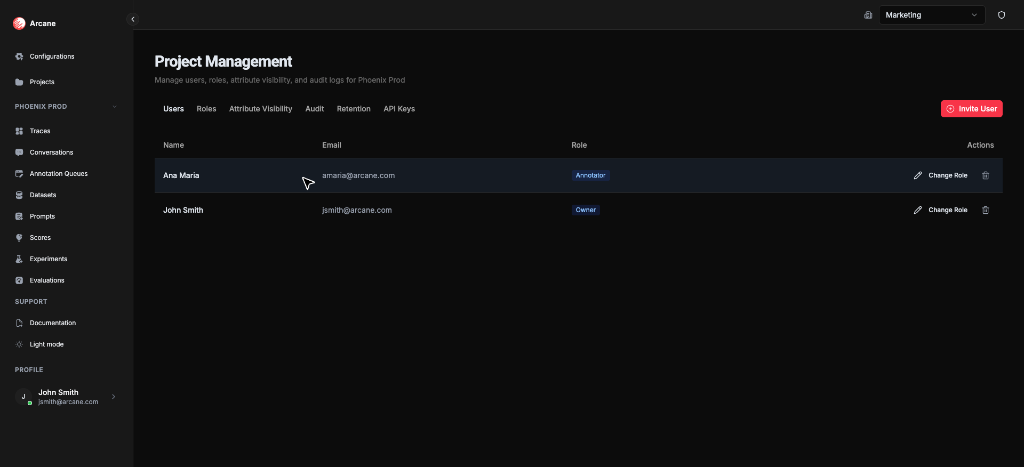
What you see
The Users tab shows a table of all project members:
| Column | Description |
|---|---|
| Name | User's display name |
| User's email address | |
| Role | Their project role (dropdown to change) |
| Actions | Remove button (trash icon) to remove the user |
Inviting a user
Click Invite User to add someone to your project.
Invite User dialog
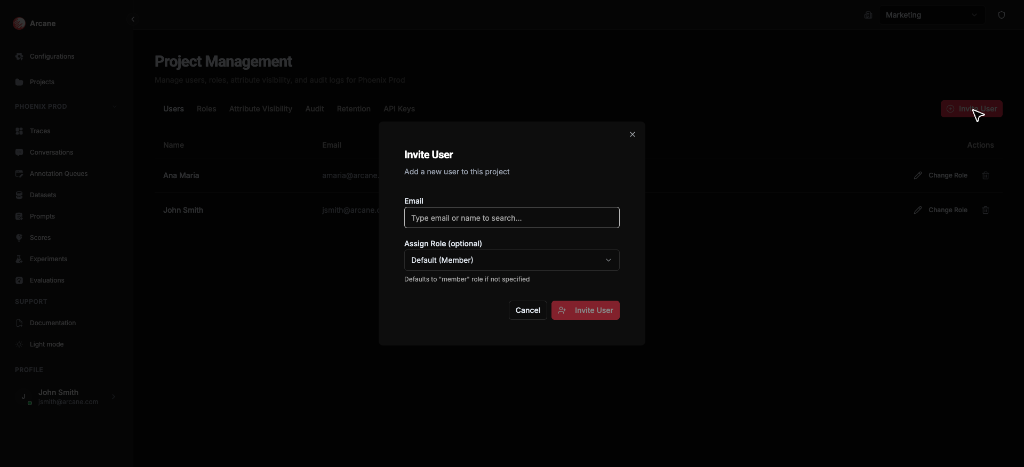
| Field | Required | Description |
|---|---|---|
| Yes | Type email or name to search. Autocomplete suggests organization members not yet in the project | |
| Assign Role (optional) | No | Choose their project role from the dropdown. Defaults to "Default (Member)" if not specified |
Buttons: Cancel closes without saving. Invite User adds them to the project.
Tip: You can only invite users who are already members of the organization. If someone isn't in the organization, invite them there first. See Managing Users.
Changing a user's role
Click Change Role next to a user's name to update their project role. Available roles:
- Project Admin — Full access to project settings, users, roles, API keys, and all project resources
- Member — Can create and edit resources (evaluations, experiments, prompts, etc.)
- Viewer — Read-only access to project resources
Note: Role changes take effect immediately. Make sure you're granting the right level of access.
Tip: You can also create custom roles with specific permissions. See RBAC for more information.
Removing a user
Click the trash icon next to a user to remove them from the project. This:
- Removes their access to the project and all its resources
- Does not remove them from the organization (they may still belong to other projects)
- Cannot be undone — you'll need to invite them again if they need access back
Warning: Removing a user immediately revokes their access to the project. Make sure they've finished any important work before removing them.
When to use
- Onboarding — Invite new team members when they join your project
- Access changes — Update roles when someone's responsibilities change
- Offboarding — Remove users when they leave the team or no longer need access
- Security — Regularly review who has access and remove users who shouldn't
Prerequisites
- Project access — You must be a member of the project
- Project Admin role — You need Project Admin permissions to invite, change roles, or remove users
- Organization membership — Users must be members of the organization before you can invite them to a project
Related
- Managing Projects — Overview of Manage Project page
- RBAC — Learn about roles and permissions
- Managing Users — Manage users at the organization level
- Projects Dashboard — Create and manage projects