Managing Users
The Users tab shows every user registered in your Arcane instance. Use it to see who has access, identify instance administrators, and manage user accounts.
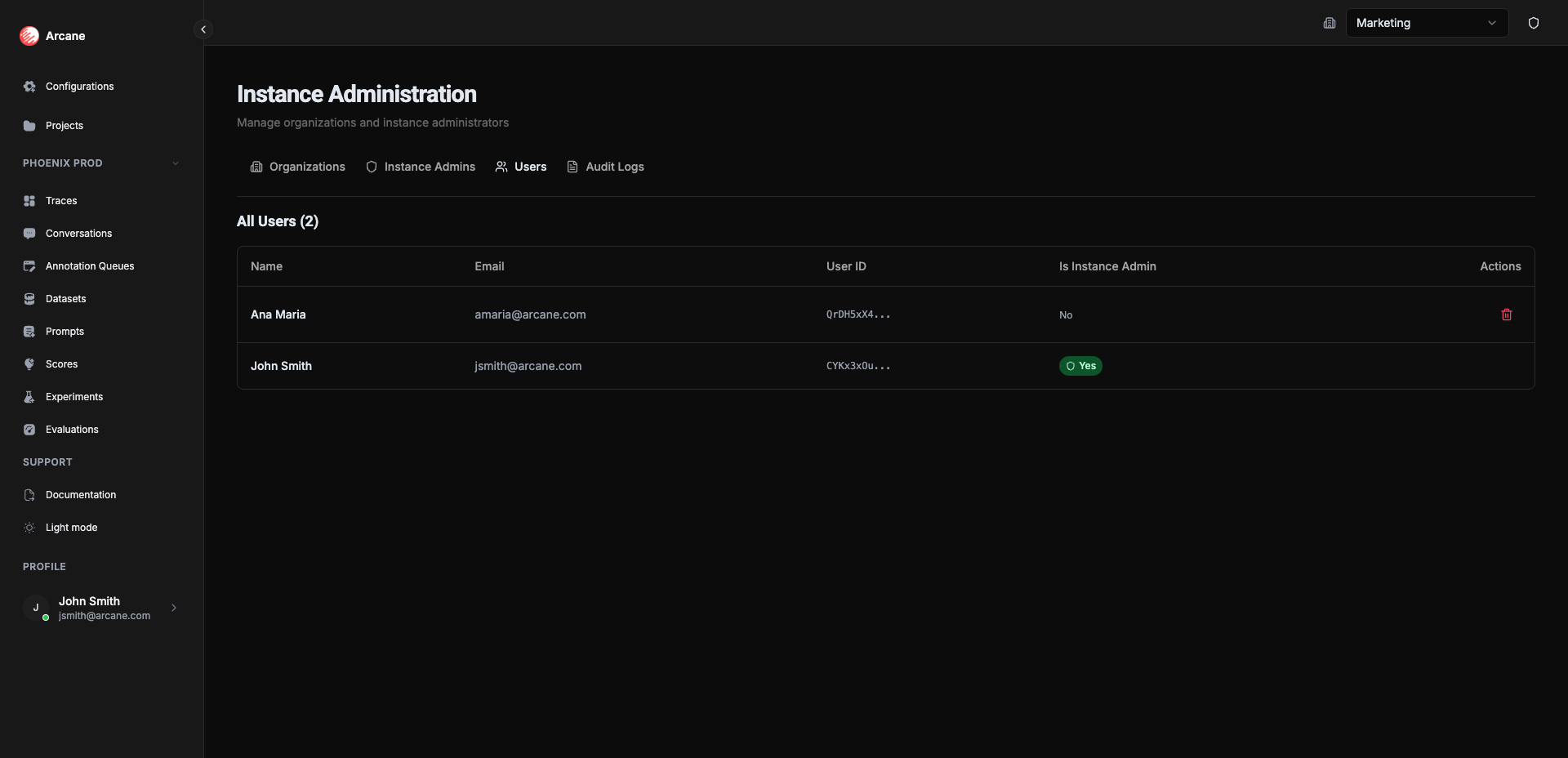
What you see
The users table displays all users across the instance with:
| Column | Description |
|---|---|
| Name | User's display name (shows "N/A" if not set) |
| User's email address | |
| User ID | Truncated user ID (first 8 characters) |
| Is Instance Admin | Badge showing "Yes" with shield icon if the user is an instance admin, or "No" if not |
| Actions | Delete button (only shown if the user can be deleted) |
Viewing users
The table shows all users registered in the instance, regardless of which organizations they belong to. This gives you a complete view of everyone who has access to your Arcane deployment.
Tip: Use the "Is Instance Admin" column to quickly identify which users have instance administrator privileges.
Deleting users
You can delete users from the instance by clicking the trash icon in the Actions column. This permanently removes the user from the system.
Who you can delete
- Regular users who are not instance administrators
- Users who are not yourself
Who you cannot delete
- Instance administrators — Remove their admin privileges first in the Instance Admins tab
- Yourself — You cannot delete your own account
Important: Deleting a user removes them from all organizations and projects. This action cannot be undone.
When to use
- Audit access — See all users who have access to your instance
- Identify admins — Quickly find which users have instance administrator privileges
- Clean up accounts — Remove users who no longer need access
- Security review — Review who has access before making access changes
Related
- Managing Instance Admins — Add or remove instance administrator privileges
- Managing Organizations — Create organizations where users belong
- Instance Administration Overview — Overview of all instance administration features