Managing Instance Admins
Instance administrators have full control over the Arcane instance. They can access Instance Administration, create and delete organizations, manage users, and grant or revoke instance admin privileges. Use this tab to manage who has these permissions.
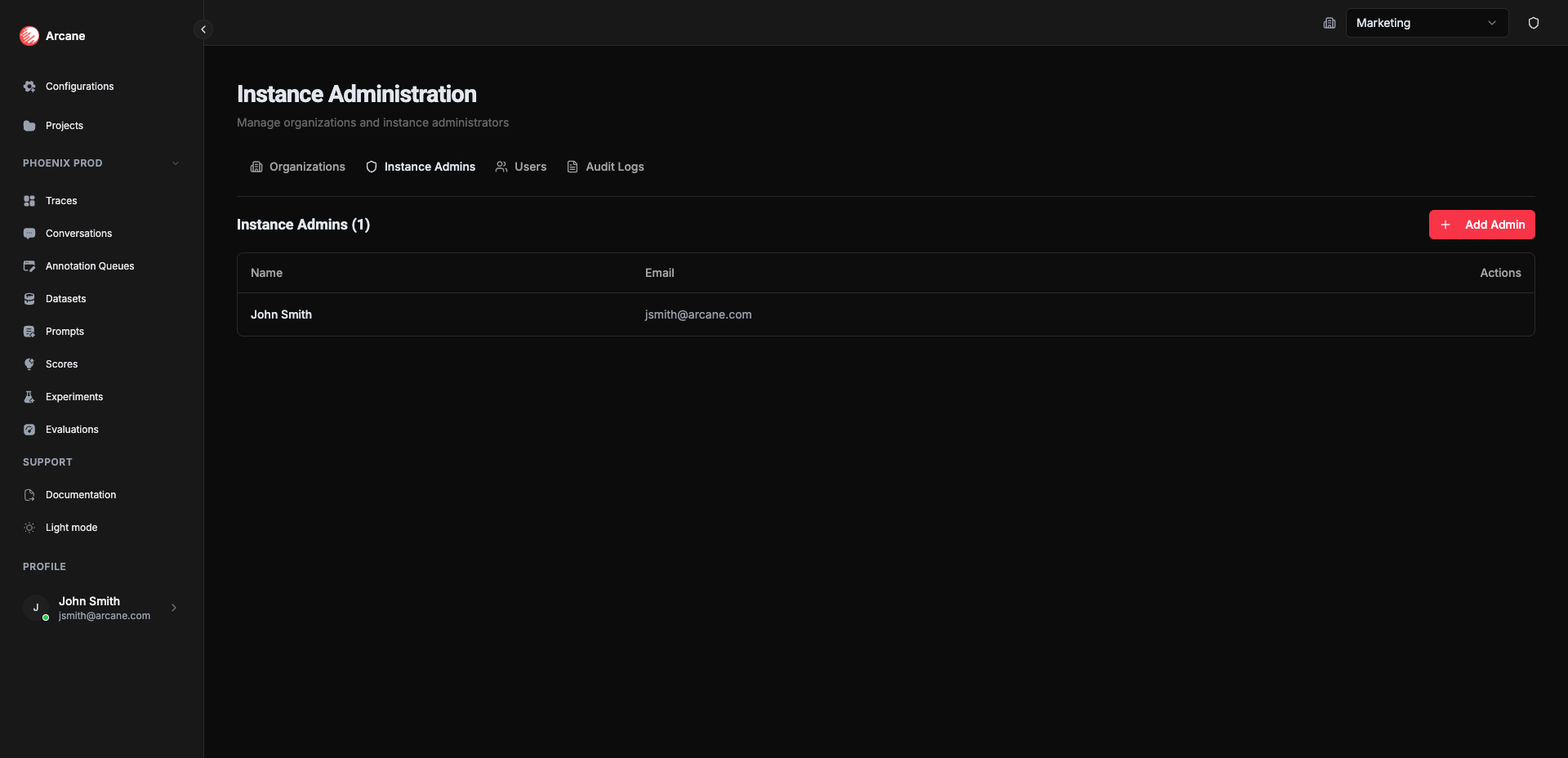
What you see
The Instance Admins tab shows a table of all users with instance administrator privileges:
| Column | Description |
|---|---|
| Name | User's display name (shows "N/A" if not set) |
| User's email address | |
| Actions | Remove button (X icon) to revoke admin privileges |
Adding an instance admin
Click Add Admin to grant instance administrator privileges to a user.
Add Instance Admin dialog
| Field | Required | Description |
|---|---|---|
| Search by Email | Yes | Type an email address to search for users. Results appear as you type (minimum 2 characters). Select a user from the dropdown. |
How it works:
- Type at least 2 characters in the search field
- Matching users appear in a dropdown as you type
- Select a user from the dropdown (or continue typing to narrow results)
- Click Add Admin to grant privileges
Tip: The search matches both email addresses and names, so you can search by either. Users who are already instance admins won't appear in the results.
Removing an instance admin
Click the X icon next to an admin to remove their instance administrator privileges. This revokes their access to Instance Administration and prevents them from managing organizations and users.
Important: You must always have at least one instance administrator. If you try to remove the last admin, the action will be blocked and you'll see an error message.
What instance admins can do
Users with instance administrator privileges can:
- Access Instance Administration — View and manage organizations, users, and admins
- Create organizations — Set up new organizations for teams or environments
- Delete organizations — Remove organizations and all their data
- Manage users — View all users and delete accounts
- Grant admin privileges — Add or remove instance administrators
- Access all organizations — View and access every organization in the instance
- Super access to all projects — Full access to all projects across all organizations, regardless of project-level permissions
Note: Instance admins have full control over the instance and super access to all organizations and projects. They can view and manage everything regardless of organization or project membership. Only grant these privileges to trusted team members.
When to use
- Initial setup — Add instance administrators when first setting up your deployment
- Team growth — Grant admin privileges to new team members who need instance-level access
- Access review — Regularly review who has admin privileges and remove access when no longer needed
- Security — Limit admin privileges to only those who need them
Related
- Managing Users — View all users and manage accounts
- Managing Organizations — Create and delete organizations
- Instance Administration Overview — Overview of all instance administration features